
Tutorial
Get started with Govforms Digital Service Builder
Create a basic service, explore Builder, update content and test it in User view.
In this tutorial you will create a basic service, explore its pages and settings, update content and test the result in User view.
1. Create a service
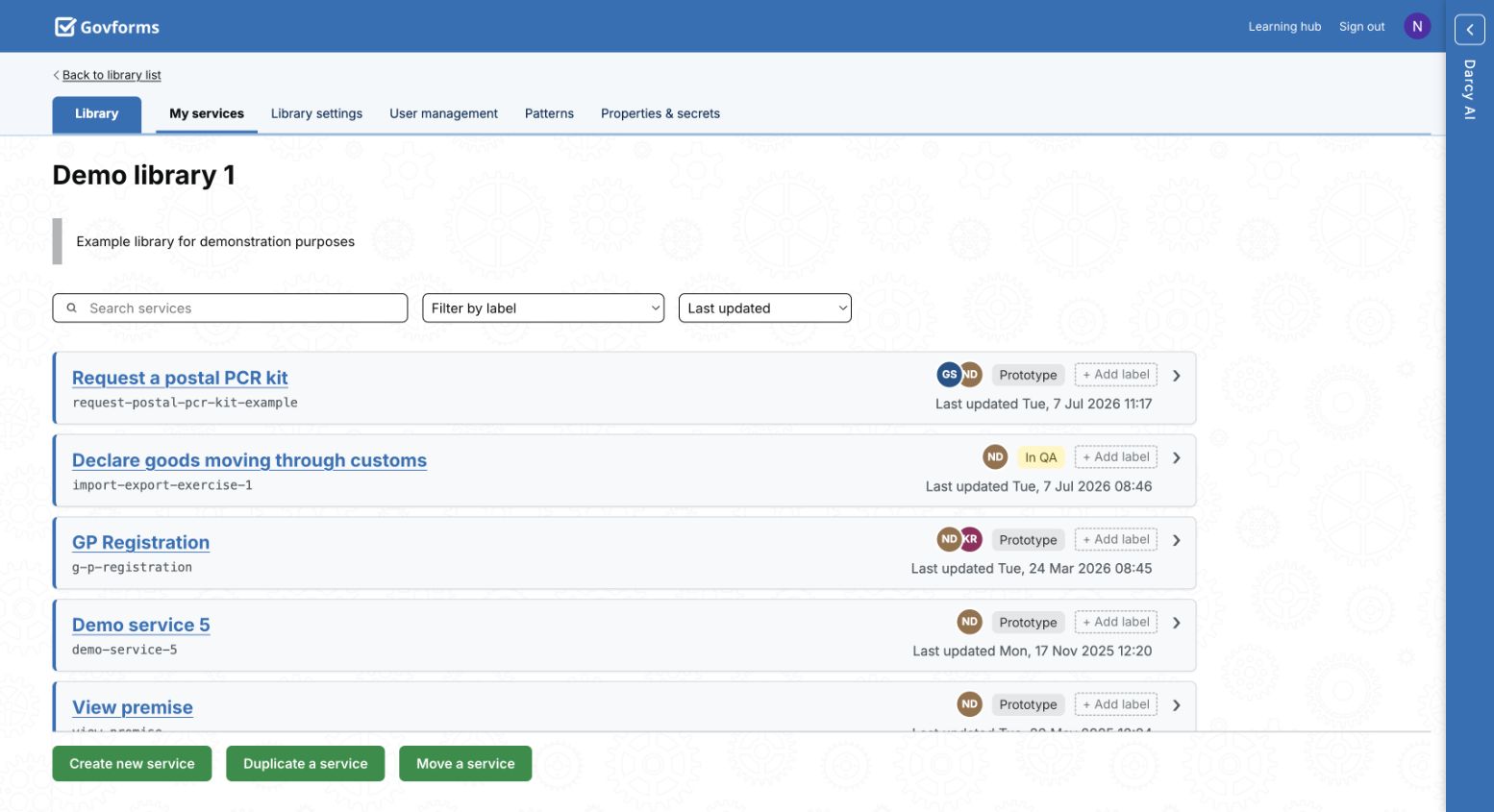
- Sign in and open the service library you have been asked to use.
- Select Create new service, choose Create it myself, then continue.
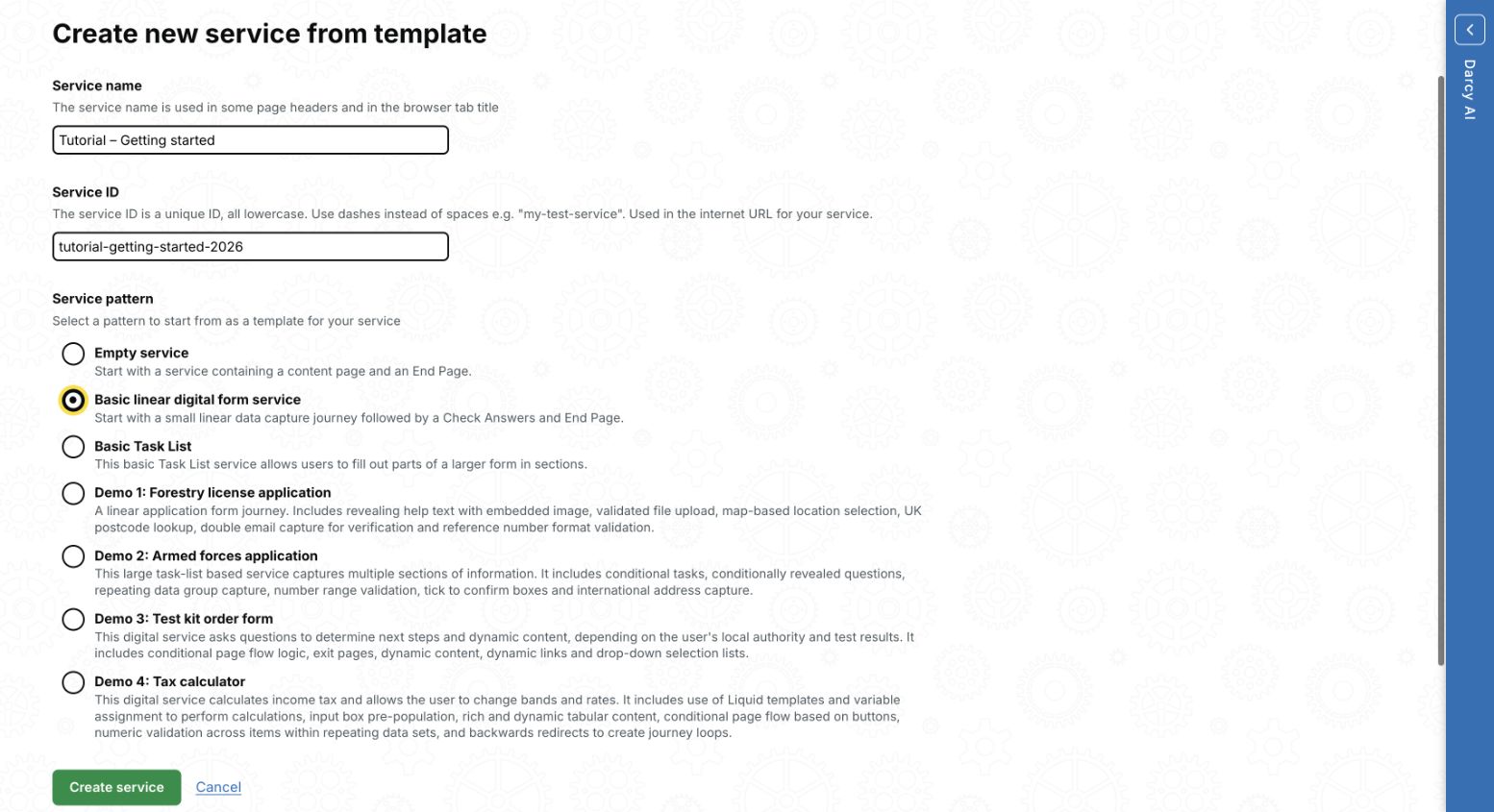
- Enter a service name and a unique, lower-case service ID.
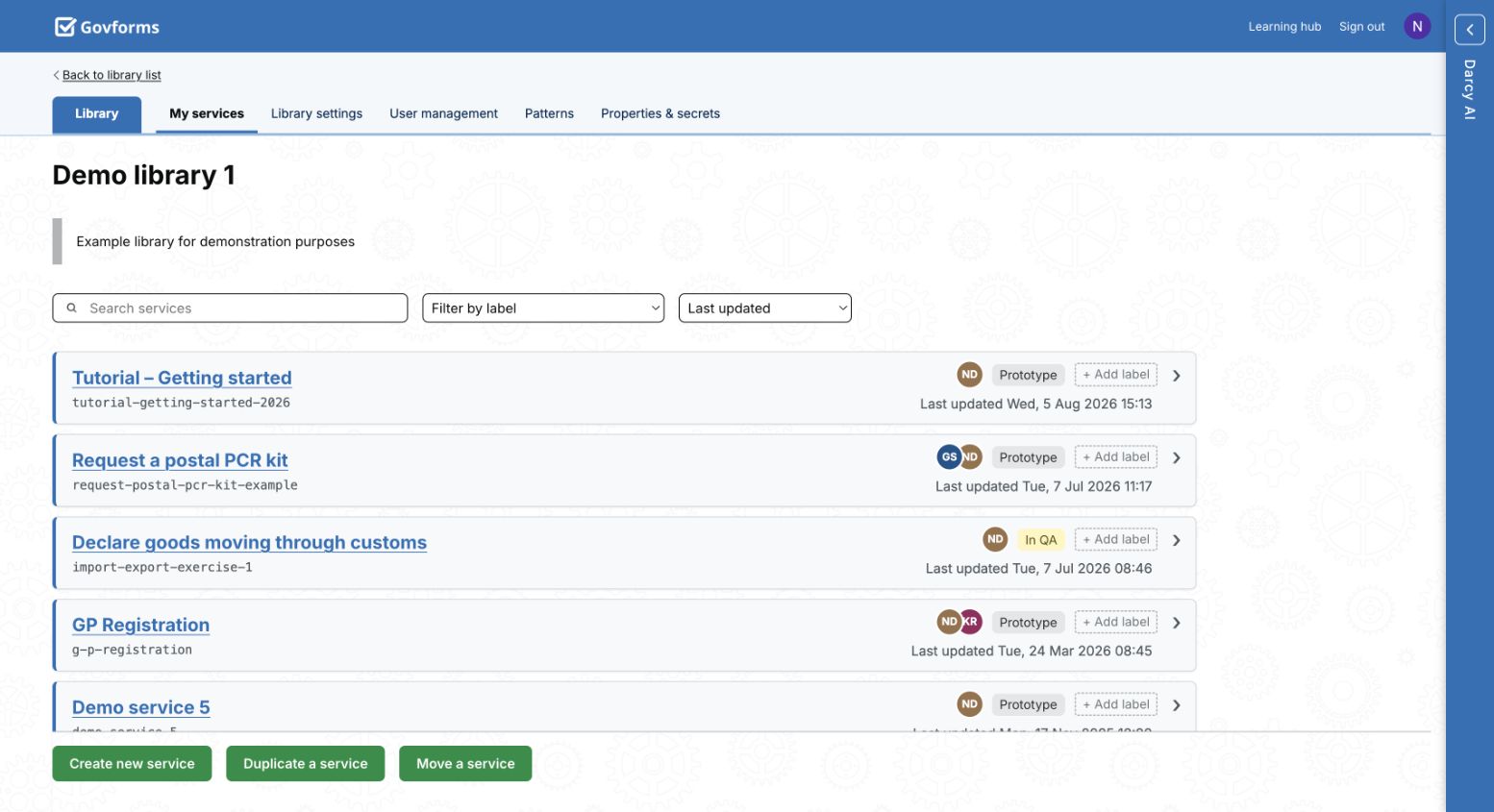
- Select Basic linear digital form service and create the service.
2. Explore the service
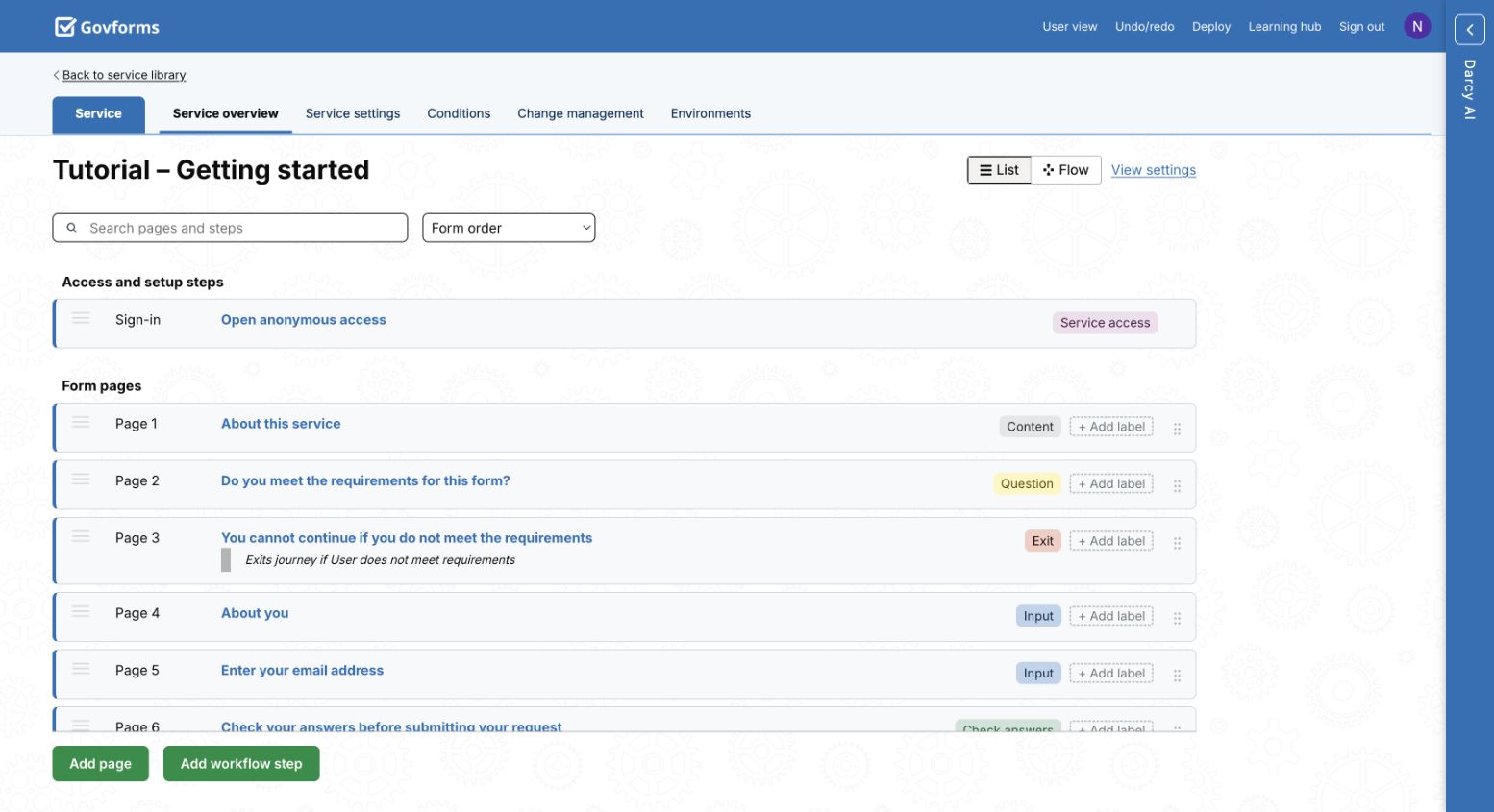
Open the new service. Service overview lists the access step, form pages and submission workflow. Use List and Flow to inspect the journey. Open Page 1, then use the page tabs and page list to move between content, settings, conditions, validation and actions.

3. Update content
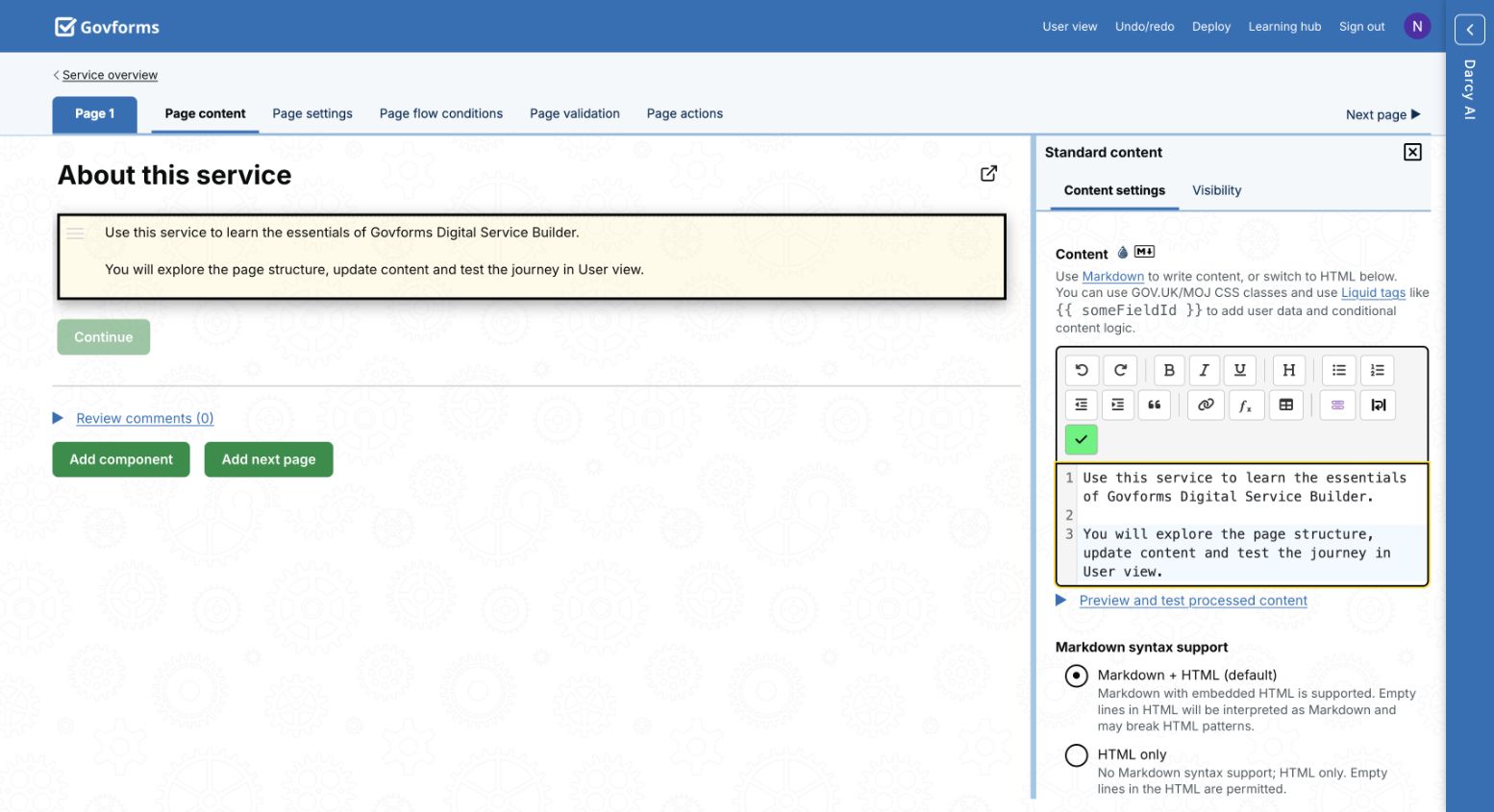
Select the Standard content component. Replace the placeholder copy with clear introductory text, then apply the change. Govforms supports Markdown with embedded HTML by default.
4. Test in User view
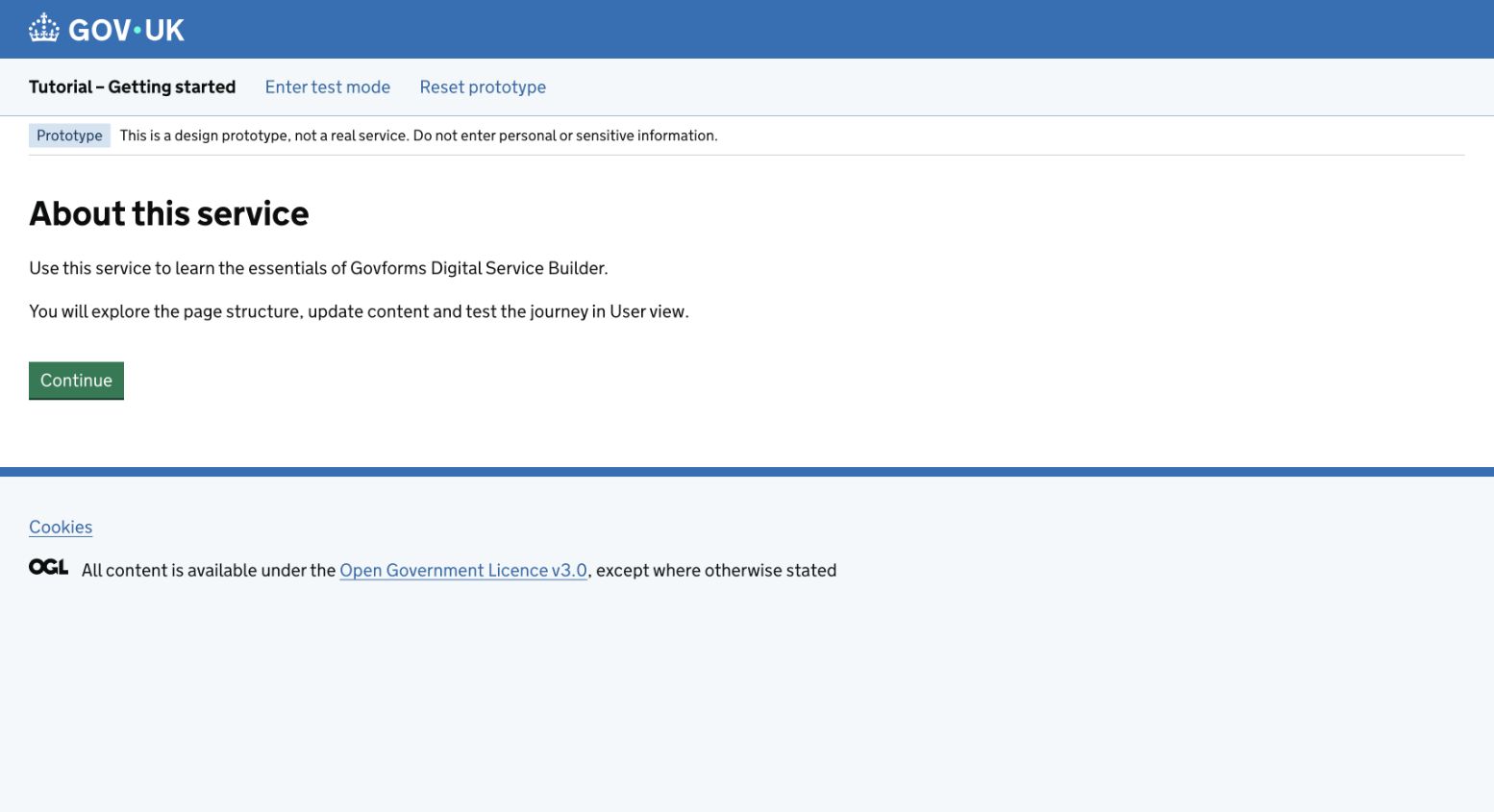
Select User view in the header. The prototype opens separately and updates as you apply Builder changes. Check the full journey, including validation, Back links and the final page. Use Reset prototype to start again.
What you learned
- Create a service from the current template picker.
- Navigate page and service settings.
- Edit and apply component content.
- Test changes in User view.